
Pixlr AI Photo & Video Editor
Pixlr Pte LtdPhotography
3.654.25K Reviews
- Version
- 3.9.1
- Installs
- 100.00M
- Age Rating
- Everyone
Screenshots
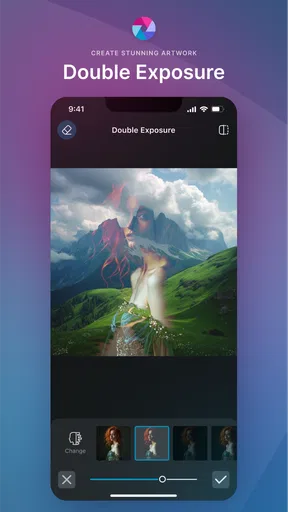
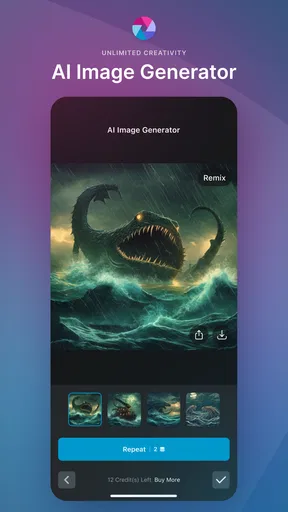
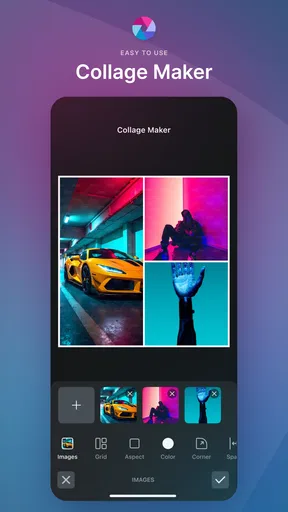
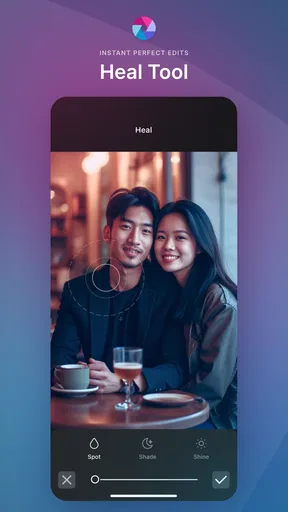
Our Review of Pixlr AI Photo & Video Editor
 Analysis by Appyee
I tend to judge a photo editor not just by how many effects it offers, but by how much control I keep while using them. With Pixlr AI Photo & Video Editor, that question matters because a casual crop, a collage, and an AI-assisted edit can involve very different choices. I like having a flexible creative toolkit on my phone, but I also want to know when an edit is being applied automatically and when I can shape the result myself.
A useful toolkit, with a trust question
Pixlr is a free photography app from Pixlr Pte Ltd, and its long history in mobile editing makes it feel aimed at everyday creators rather than people who want a complicated desktop-style workflow. It has an average rating of 4.1 from around 1.2 million ratings, and it has been installed over 100 million times. Those figures suggest broad reach, not a guarantee that every feature will suit every person; I’d treat them as context rather than a substitute for trying the app with a low-stakes picture first.
The app is rated for Everyone, and its current version is 3.8.2, with Android 9 as the minimum operating system requirement. I would still check the permissions and choices shown on my own device before importing personal images. Permission prompts can change with the operating system and the way a feature is used, so I wouldn’t assume that every tool needs the same access. I’d grant only what makes sense for the task in front of me.
Keep the editing choices visible
My most practical habit with any editor is to work on a copy or keep the original untouched until I’m happy with the result. That is especially helpful when testing automatic enhancement, filters, or object removal: a quick comparison against the source makes it easier to catch overly strong color, softened detail, or an edit that changes the mood more than intended. Pixlr’s broad set of tools invites experimentation, but a restrained first pass usually gives me a more natural result.
Some edits are more personal than others. A background change or face-related effect can alter how a person is represented, so I’d review the finished image carefully before sharing it, particularly if other people appear in it. I also avoid treating an AI result as a factual record of an event. For a playful collage that may not matter; for a profile image, family memory, or image intended to explain what happened, keeping edits modest is the better call.
Use it at your own pace
Pixlr includes in-app purchases ranging from $0.99 to $79.99 per item, so I’d look at the purchase screen closely before choosing anything paid. A free download is a convenient way to explore the basics, but it doesn’t mean every option is included at no cost. I prefer to find out whether the features I actually use are available in my normal workflow before considering an upgrade, rather than paying because a premium prompt appears at the wrong moment.
I also like to separate editing from publishing. Even when an app makes sharing convenient, I want a final chance to inspect the crop, the people in the frame, and any sensitive background details. That small pause is useful with any photo tool, and it becomes more important when a strong filter or AI edit makes an image look different from the original.
Unleashing Your Inner Artist
First things first, let's talk about the interface. Opening up Pixlr AI Photo & Video Editor for the first time is like stepping into an art gallery where you’re the artist. The app’s layout is super intuitive, making it easy to navigate even if you’re not a tech wizard. From photo enhancements to video edits, everything is neatly organized, so you can dive right into your creative projects without a hitch.
Features That Make You Go "Wow"
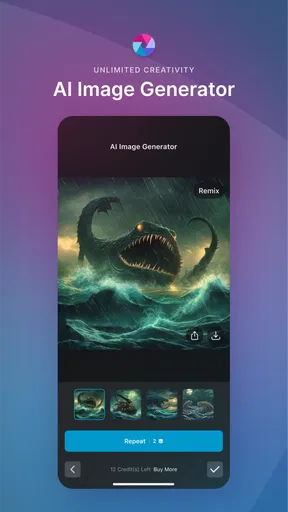
What sets this app apart from the sea of editing tools? It’s the AI-powered features. The AI takes the guesswork out of the equation, automatically enhancing your photos with just a tap. Imagine adjusting lighting, contrast, and color balance all at once, without having to fiddle with sliders. It’s like having an expert editor right by your side.
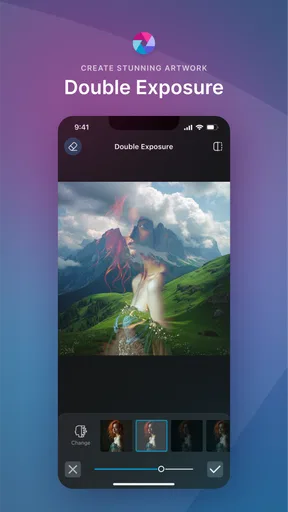
But wait, there’s more! The app offers a plethora of filters that can turn your mundane snaps into artistic masterpieces. Whether you’re into vintage vibes or modern aesthetics, there’s a filter for every mood. And, if you’re feeling adventurous, you can layer multiple effects to create something truly unique.
Video Editing on the Go
Now, let’s talk about video editing. I’ve tried my hand at a few video apps, and let me tell you, Pixlr AI doesn’t disappoint. The tools are straightforward, allowing you to trim, cut, and add music with ease. The AI features extend to video too, helping you enhance colors and stabilize footage, making your videos look professional with minimal effort.
The Little Extras
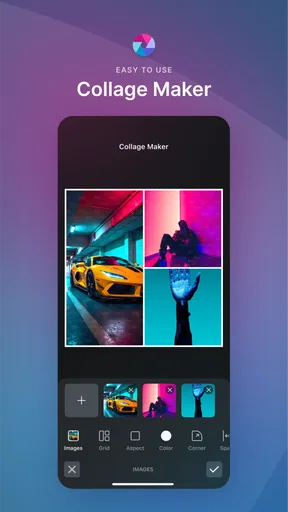
One thing I love about this app is the little extras that make a big difference. For instance, the collage maker is a fun way to showcase multiple photos in one frame. Plus, the app offers a variety of templates and stickers to add a playful touch to your creations. It’s these thoughtful additions that make the editing process not just easy, but genuinely enjoyable.
Sharing is Caring
Once you’ve created your masterpiece, sharing it with the world is a breeze. The app supports direct sharing to social media platforms, so your friends can see your work in all its glory with just a couple of taps. Whether you’re an Instagram influencer or just someone who loves to share moments with friends, Pixlr AI Photo & Video Editor makes it simple and seamless.
A Few Things to Keep in Mind
While the app is a powerhouse of features, it’s not without its quirks. Occasionally, the app can be a bit resource-heavy, especially when working with high-resolution videos. However, this is a small price to pay for the robust capabilities it offers.
The free version also comes with ads, which can be a bit distracting. But if you’re willing to invest in the premium version, you’ll enjoy an ad-free experience with a few extra perks that might just be worth it if you’re serious about your editing game.
Choosing the right job for each tool
Where Pixlr makes the most sense to me is in quick, mixed-media projects: tidying a phone photo, giving a short clip a consistent look, or arranging several images into a collage without switching between separate apps. That convenience is its strongest practical advantage over a narrowly focused editor. A dedicated photo app may offer a more deliberate approach to tone and detail, while a dedicated video editor may provide a deeper timeline workflow; Pixlr is a better fit when I want several kinds of lightweight edits in one place.
For example, after a weekend outing I might choose a few pictures for a collage, apply a gentle shared look, and trim a short clip for friends. I would start with the image that has the most natural light, use it as a visual reference for the others, and avoid stacking several strong filters just because the option is there. This helps a set of photos feel related without making skin tones or skies look conspicuously different from one frame to the next.
Small workflow choices that improve results
One useful trade-off is speed versus precision. Automatic enhancement can save time when a picture is merely dull, but it is not always the right first move for an image that already has dramatic lighting. I’d compare the original with the enhanced version before adding a filter; otherwise, an automatic adjustment and a strong preset can compound each other. If a face or bright sign starts to look unnatural, I’d back off rather than trying to fix every change with another effect.
For collages, I’d choose the images before opening the layout and look for a common thread—similar colors, a sequence of moments, or one clear subject. Templates and stickers can help a collage feel finished, but too many decorative elements compete with the photos. A clean arrangement often tells the story better, especially when the images are going to be viewed on a small screen.
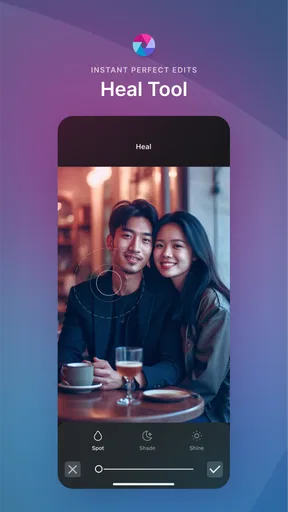
Object removal is best treated as a repair tool, not a promise that every complicated background will disappear invisibly. I’d use it for a small distraction against a relatively simple area, then zoom in and inspect edges and repeating textures. If the unwanted object crosses a face, patterned clothing, or a detailed scene, a visible patch may be more distracting than the original. In that case, cropping or leaving the object in place can be the more honest and better-looking choice.
When Pixlr may not be the right fit
If I needed precise control over a complex video project, long edits, or a highly structured timeline, I’d reach for a video-first editor rather than expect this app to replace one. Likewise, someone who wants to develop a consistent photographic style through careful manual adjustments may prefer a tool built around detailed image controls. Pixlr’s appeal is breadth and approachability; that same breadth can mean the individual workflows feel less focused than a specialist’s.
It may also be a poor choice for someone who wants a completely quiet, uninterrupted free experience. The original review notes ads in the free version, and purchase prompts can be another point to pause and assess. Since in-app items range from $0.99 to $79.99, I’d check the exact item and terms presented in the app rather than assume one upgrade unlocks everything I want. If I only need an occasional crop or basic adjustment, a simpler editor already on my phone may be enough.
My cautious recommendation
For a beginner, a casual social-media creator, or anyone who likes combining photo effects, collage layouts, and simple video work, Pixlr is worth exploring. Its range encourages play, and its automatic tools can make a first edit less intimidating. I’d approach the AI features as starting points rather than final decisions, keep an original image available, and review edits before sending them to other people.
If your priority is fine-grained control, a dedicated specialist may serve you better; if you want an approachable collection of creative tools, Pixlr is a sensible option to try. My recommendation is to begin with a non-sensitive photo, explore the controls at your own pace, and decide whether the workflow suits you before spending money or using it on images you would rather keep private.
Final Thoughts
So, here’s the bottom line: if you’re looking for a powerful yet user-friendly editing tool, Pixlr AI Photo & Video Editor should definitely be on your radar. It’s perfect for both beginners who want to dip their toes into the world of editing and seasoned pros looking for a quick and effective tool on the go.
In a nutshell, it’s an app that inspires creativity, turning your average photos and videos into something extraordinary. Whether you’re editing for fun or crafting a visual story, this app is like having a little bit of magic at your fingertips.
Verdict
Strengths of Pixlr AI Photo & Video Editor
- Intuitive interface for easy editing.
- Wide range of filters and effects.
- Supports both photo and video editing.
- AI tools enhance images automatically.
- Cross-platform syncing available.
Limitations of Pixlr AI Photo & Video Editor
- Contains in-app ads.
- Some features require a subscription.
- Limited export options in free version.
- Occasional lag on older devices.
- Advanced tools can overwhelm beginners.
Similar Picks in This Category
View All
Google Photos
Google LLC4.4

Gallery
Google LLC4.2

Picsart AI Photo Editor, Video
PicsArt, Inc.3.9

B612 AI Photo&Video Editor
SNOW Corporation4.1

BeautyPlus-Selfie Photo Editor
PIXOCIAL TECHNOLOGY (SINGAPORE) PTE. LTD.4.5

Remini - AI Photo Enhancer
Bending Spoons4.1
Frequently Asked Questions
What features does Pixlr AI Photo & Video Editor offer?
Pixlr AI Photo & Video Editor provides a comprehensive suite of tools for both photo and video editing. Users can enjoy AI-powered enhancements, filters, overlays, and text additions. The app also supports layer editing, allowing for more complex compositions. Additionally, it offers various templates and design elements to personalize your creations.
Is Pixlr AI Photo & Video Editor suitable for beginners?
Yes, Pixlr AI Photo & Video Editor is designed to be user-friendly for beginners while offering advanced tools for experienced editors. Its intuitive interface and AI-powered features simplify editing tasks, making it accessible to those with little to no prior experience. Tutorials and guides are also available to help new users get started.
Does Pixlr AI Photo & Video Editor support all file formats?
Pixlr AI supports a wide range of file formats, including JPEG, PNG, and GIF for images, and popular video formats like MP4. However, for professional-grade editing, users might need to convert some files to compatible formats. Always check compatibility with the specific file types you intend to edit.
Are there any subscription costs associated with Pixlr AI Photo & Video Editor?
Pixlr AI offers both a free version and a premium subscription. The free version includes basic editing tools, while the premium subscription unlocks advanced features, removes ads, and provides access to exclusive content. Pricing is competitive, with monthly or annual plans available to suit different budgets.
How does Pixlr AI ensure user privacy and data security?
Pixlr AI is committed to user privacy and employs encryption to protect data. The app follows industry-standard security protocols to ensure that user information is safe. Additionally, Pixlr AI does not store your edits or personal data without consent, and users can review the privacy policy for detailed information.
